To make a 58th Floor AI video on Put Me In, you need two photos: one of you and one of a friend. The clip it follows is a two-person performance in a teal studio, with a silver microphone hanging on a cord between the performers. Frame-left stands a man in a tan cap and small tinted sunglasses. Frame-right stands a man in a shiny black jacket, and the camera gives him a close-up in the middle of the clip. The 58th Floor AI template page plays that original clip with its sound. Below you will find which photo goes in which box, how the clip runs moment by moment, the order of the steps and the mistakes to avoid.
What You Get
- A new AI video made from two photos. Photo 1 is for the performer on the left, photo 2 for the performer on the right.
- About 15 seconds, 9:16 vertical, the same length and shape as the clip on the template page. The moves, their order and their timing come from that clip, and the trend's sound plays from the first second.
- A close-up for the person in photo 2. The photo tip on the template page says the performer on the right also gets one.
- No prompt to write. You upload the two photos and pick a resolution.
- One video per order: $9.99 at 480p, $19.99 at 720p, $39.99 at 1080p, or 10, 20 or 40 credits. Prices are in US dollars, and tax may be added at checkout depending on where you live.
What the Trend Is
58th Floor is the opening track of an album that a music review site covered on 22 October 2026. The template page also lists it as 58th Floor AI video, 58th Floor trend, 58th Floor duet and 58th Floor meme. We could not trace who made the first AI version of this clip, or when.
The clip on the template page is not something Put Me In made. In the original clip, two real performers share a hanging microphone in a teal studio for about 15 seconds. Our other article, 58th Floor AI explained, covers the trend itself; this one is about the order. For more clips of this kind, browse our roundup of AI video trends.
The studio
At these times the background is plain teal with nothing on it but the microphone. The microphone is silver, with a mesh grille at its lower end, and it hangs from a thin black cord that comes down from the top of the picture. In the waist-up shots it sits between the two heads, a little nearer the man on the left. In the head-to-toe shots the cord runs a long way down from the top of the picture and the microphone sits at about head height between them. Those wide shots also show the floor: teal like the wall, with a lighter strip along its front edge at the bottom of the picture.
Who stands where, and what they wear
The man on the left wears a tan cap with a short brim, small oval sunglasses with tinted lenses and a thick silver chain. His black short-sleeved T-shirt has a large print on the front. Tattoos run down his forearm, and a green band sits on his wrist. From the waist down he wears light-blue jeans. In the wide shots those jeans are loose, with red and dark patches on them, and his shoes are dark sneakers with white soles.
The man on the right has short, dark, curly hair and an earpiece in his ear with a thin wire running from it. He wears a shiny black jacket with a collar and a zip, black trousers and black shoes. A gold watch shows on his wrist at about 8.1 and 11.9 seconds.
The original clip, shot by shot
Times are in seconds of the preview on the template page.
| Time | Shot | What the picture shows |
|---|---|---|
| About 0.6 | Both men, from the thighs up | The man on the left smiles, both hands up in front of his chest. The man on the right faces forward, one open hand raised, the other in front of his stomach. |
| About 1.9 | Thighs up | Frame-left, the mouth is open close to the microphone and one hand rests on the chest. Frame-right, an open hand is raised near the face. |
| About 3.1 | Thighs up | The man on the left smiles, a hand at the chain on his chest. The man on the right faces forward with his hands together in front of him. |
| About 4.4 | Thighs up | The man on the right is in profile, facing the man on the left, whose mouth is open near the microphone. |
| Between about 4.4 and 5.6 | Cut | The picture cuts to the man on the right, in close-up. |
| About 5.6 | Close-up, chest up | The microphone is at the left edge of the picture. He faces it, mouth open, the earpiece in view. |
| About 6.9 | Close-up | Mouth open, facing the microphone at frame-left. |
| About 8.1 | Close-up | Eyes closed, mouth open, one hand raised in front of his chest, the gold watch on his wrist. |
| Between about 8.1 and 9.4 | Cut | A wide shot from head to toe. |
| About 9.4 | Wide | Both stand on the teal floor. The man on the left smiles, arms low. The man on the right faces him, one hand at his chest. |
| About 10.6 | Wide | The man on the left stands square to the camera with his head turned toward the man on the right, one hand out to his side and the other at his chest. The man on the right faces him with an open hand raised at chest height. |
| Between about 10.6 and 11.9 | Cut | Both men from the waist up, framed closer than at the start. |
| About 11.9 | Close two-shot | The man on the left has a wide smile. The man on the right is in profile, pointing a finger toward him. |
| About 13.1 | Close two-shot | The man on the left presses his lips together, hands joined at his waist. The man on the right faces him, mouth open, an open hand raised. |
| About 14.4 | Close two-shot | Frame-left: lips pressed together, head tilted a little. Frame-right: mouth open toward the man on the left, one hand raised at chest height. |
The upload boxes follow this layout. Photo 1, "You, on the left", is for the performer standing beside the microphone on the left, the one in the cap in the original clip. Photo 2, "Your friend, on the right", is for the performer on the right, the one in close-up at about 5.6, 6.9 and 8.1 seconds.
What to Prepare
An order takes two photos, a resolution and a way to pay. Before you open the template page, have these to hand:
- A photo for the box "You, on the left". One adult: you, or someone who agreed to appear. In the original clip this is the man in the cap, the one nearer the microphone in the waist-up shots.
- A photo for the box "Your friend, on the right". One adult who agreed to appear. This is the photo the close-up uses.
- Faces that read clearly. The template page's tip asks for a clear, front-facing photo for each performer, where the face is easy to see. Each person keeps the face, hair and outfit from their own photo.
- Waist-up is enough. What a photo does not show, like trousers and shoes, comes from the original clip. That matters at about 9.4 and 10.6 seconds, where the wide shot shows both performers head to toe.
- Nobody under 18, no public figures. The photos are checked before you pay.
- A resolution and a way to pay. 480p costs 10 credits, 720p 20 and 1080p 40, or you can pay the dollar price.
Our photo guide has more on choosing a picture.
Steps
- Go to the 58th Floor AI template and play the preview. It is the original clip with the trend's sound, and Put Me In did not make it.
- Add your own photo to the first upload box, "You, on the left".
- Add your friend's photo to the second upload box, "Your friend, on the right". The close-up comes from this one.
- Pick 480p, 720p or 1080p.
- Wait for the photo check. It runs before payment, and a photo of a public figure or of anyone under 18 is not allowed.
- Pay in dollars or with credits.
- Close the tab if you need to. Rendering usually takes a few minutes after you pay.
- Open the order page or My videos, watch the result and download it within 30 days of delivery.
Common Mistakes
- The two photos in the wrong boxes. The box order decides who stands where. The person you want in the close-up belongs in the second box, "Your friend, on the right".
- Both people in one photo. The template takes one photo per performer, and each photo is of one adult.
- A face turned away or hard to see. The tip asks for a clear, front-facing photo where the face is easy to see.
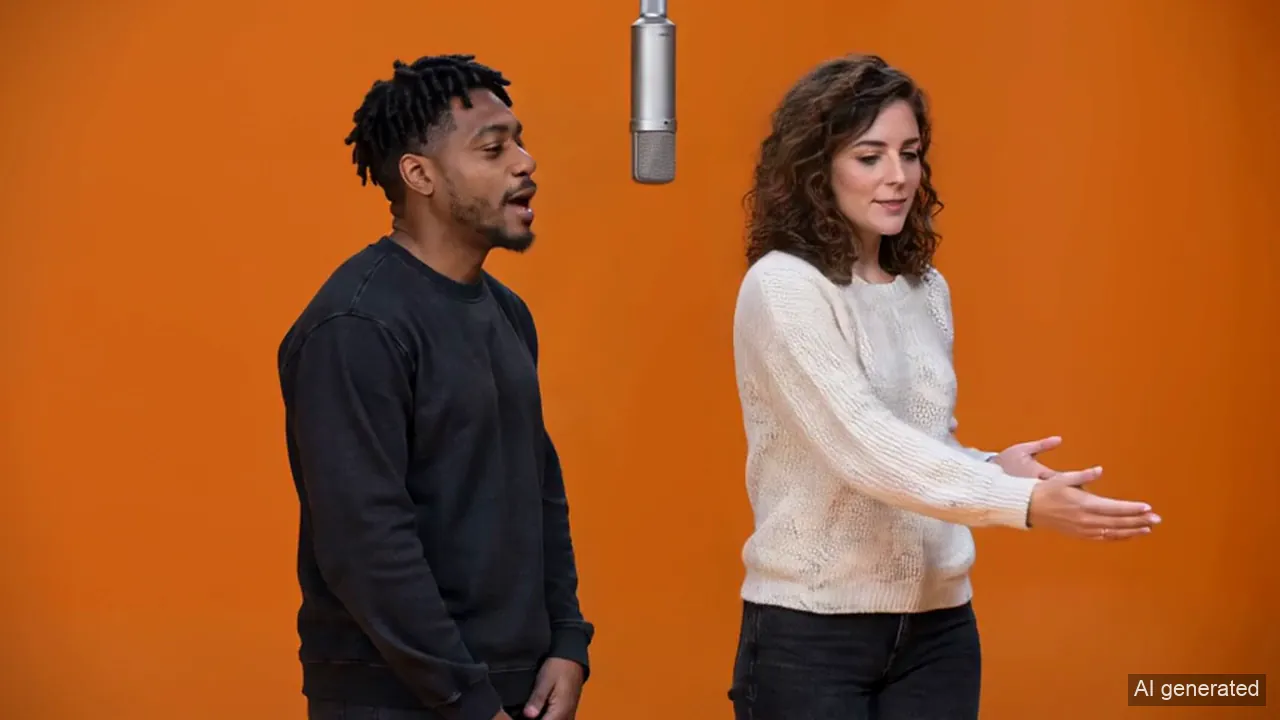
- Reading the football shirts as part of the trend. The template page also shows an example video that Put Me In made from two AI-generated photos: "a young man with short twisted dark hair in a navy number 88 football jersey with gold stripes and a young man with short blond hair in a red number 12 jersey" sing into a hanging silver microphone in a teal studio. Those jerseys belong to that example. The trend is a studio duet and has nothing to do with football; in the original clip the man on the left wears a black T-shirt and the man on the right a black jacket.
- Hoping to set the moves. You never write a prompt. The moves, their order and their timing come from the original clip, from the raised hands at about 0.6 seconds to the pointed finger at about 11.9.
- An upload left unpaid. Photos of an order that is never paid are deleted within 24 hours.
Posting It
The file you download runs about 15 seconds in vertical 9:16, the same length and shape as the clip on the template page, with the trend's sound from the first second: the music the template page plays with its preview.
The close-up goes to the photo in the second box. In the original clip that close-up shows at about 5.6, 6.9 and 8.1 seconds. That photo, like the first, has to be of an adult who agreed to appear.
What You Get Back and How Long It Takes
Rendering usually takes a few minutes after you pay. The finished video waits on the order page and under My videos, so the page can be closed meanwhile. An order gives one video, at the resolution you picked.
For a sense of a finished result, the example on the template page is described this way: "the man in red gets a close-up, then both are seen head to toe". The people in it are AI-generated, not customers.
The finished video stays 30 days after delivery. Download it in that time.
Is It a Filter
No. The video is an AI recreation made from your two photos, not a filter and not an edit of the clip's footage. An AI version is a new clip made from the photos.
Put Me In is an independent AI video tool, not affiliated with the people in the clip or with any platform.
Related Reading
More templates
 Put me in
Mi Chico Dance
1 pet · 14 s
 Put me in
Giant Hands Dress Up
1 person · 13 s
 Put me in
iPhone Kupi Dance
1 person · 15 s
 Put me in
Gangnam Style Dance
3 people · 15 s
 Put me in
Bby Wow Dance
1 person · 9 s
 Put me in
Bad Times Pet
1 person · 15 s
 Put me in
PSY Concert Entrance
1 person · 15 s
 Put me in
ABCDEFG I Need Money
1 person · 10 s
 Put me in
Hotel Lobby
2 people · 15 s
Frequently asked questions
- How many photos does a 58th Floor AI video take?
- Two, in a set order. Photo 1 goes in the box labelled You, on the left, and photo 2 in the box labelled Your friend, on the right.
- Which of the two photos gets the close-up?
- Photo 2, the performer on the right. In the original clip the man on the right is in close-up at about 5.6, 6.9 and 8.1 seconds.
- Do the photos need to show the whole body?
- No. Waist-up photos work: what a photo does not show, like trousers and shoes, comes from the original clip.
- What does it cost in credits?
- 10 credits at 480p, 20 at 720p and 40 at 1080p. In US dollars that is $9.99, $19.99 or $39.99, and tax may be added at checkout depending on where you live.
- When is the video ready, and how long is it kept?
- Rendering usually takes a few minutes after you pay, and the page can be closed meanwhile. The video stays 30 days after delivery, so download it in that time.
- Did Put Me In make the clip on the template page?
- No. The template page plays the original clip of the trend. What you order is an AI recreation made from your two photos.
Read more
What Is 58th Floor AI? The Teal Studio Duet Trend Explained
What the 58th Floor AI trend shows, from a hanging silver microphone in a teal studio to a close-up, and how to make it with a friend from $9.99.
Dance With Santa AI Explained: A Dancer Beside Santa on a Red Carpet
What the Dance With Santa AI clip shows: a dancer beside a man in a Santa suit on a red carpet by a lit tree, and how to make yours from one photo.
How to Make a Restaurant Dance AI Video From a Single Photo
Make a Restaurant Dance AI video from one photo: what to have ready, the steps, mistakes to avoid and a timed walk through the clip, from $9.99.